
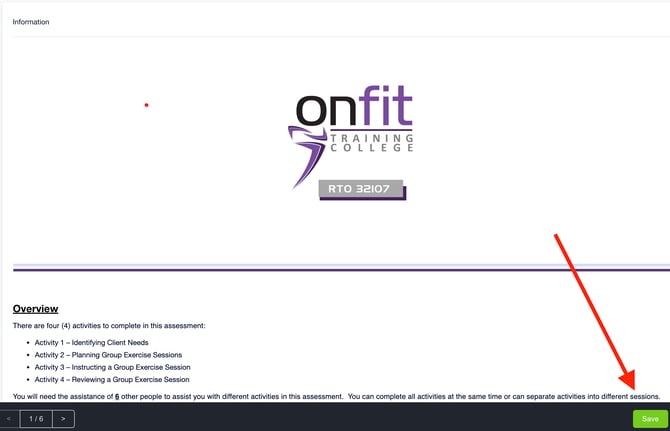
Step 1: Save Your Assessment
Before deleting any uploaded files, make sure you’ve saved your assessment.
You can only delete files after saving.
Step 2: Select the File You Want to Delete
Once your assessment is saved, you’ll see the uploaded file appear in the upload field.
Click on the file name to open it.

Step 3: Click the ‘Delete’ Button
When the file window opens, you’ll see options to View File, Add Reference, and Delete at the bottom.
Click Delete.

Step 4: Confirm Deletion
A pop-up will appear asking you to confirm you’d like to delete the file.
Click Yes, Delete to proceed.

Step 5: Save Again to Finalise
Finally, click Save in the bottom right-hand corner.
The deleted file will now be removed from your upload field.

Tip: If you’re unsure whether the file has been removed, refresh the page after saving. The deleted file should no longer appear.